
Introducing Our New Parent App, MyChildAtSchool (MCAS)
All school communications in one place.
We’re delighted to introduce the Bromcom Parent App, MyChildAtSchool (MCAS), as a new way to stay connected with parents and carers.
This will now be the main way we communicate with parents and carers, with all messages and updates sent directly through the app. Please download the app and activate your account using the link that will be sent to your registered email on Wednesday, 1st April.
As part of this transition, we will also be moving additional services into Bromcom over the coming months, helping to bring everything together in one place.
- Instant alerts
- Timetable access
- Track progress
- Student details and more!
Please note - all parents/carers will receive an activation link to their registered email account on Wednesday, 1st April. Parents/carers will be unable to access the system until this date.

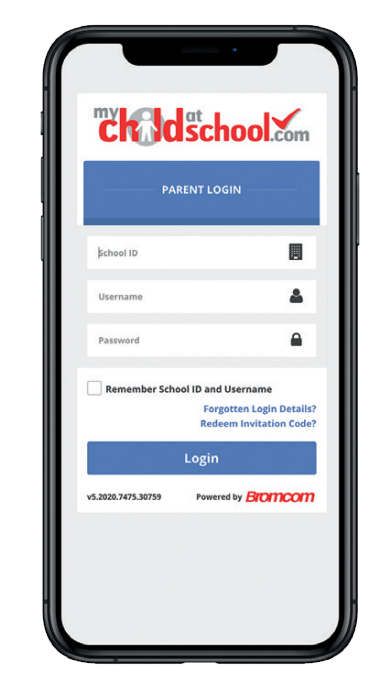 Why Use the MCAS Parent App?
With the MyChildAtSchool Parent App, parents can:
- Receive all school messages and emails in one place
- Receive notifications when new messages or updates are available to view
- View their child's timetable and class information
- View attendance and behaviour information
- Access student reports Manage student and contact details
Payments and Additional Features
As part of our wider move to Bromcom, we will also be introducing additional features over the coming months, including:
- The ability to make payments for trips, meals and other school items
- A simpler way to give consent for educational visits
This will replace ParentPay and bring multiple services together into one easy-to-use system.
Activating Your Account
To start receiving school communication via the MyChildAtSchool parent app, please follow the steps below:
- Step 1: Check your registered email for your MyChildAtSchool parent app activation link sent on Wednesday, 1st April 2026.
- Step 2: Download the Bromcom Parent App Follow the steps in the app to activate your account.
- Step 3: Follow the steps in the app to activate your account.
Once activated, you’ll have access to your child’s information and begin receiving school updates and messages through the app.
Further Guidance and Support
If you haven’t received an activation link, please contact the school so we can check we have the correct email address for you at: bromcomsupport@rbhs.co.uk.
Please note: This will now be the main way we communicate with parents and carers, with all messages and updates sent directly through the MyChildAtSchool app.
Parent Guide
Download our MCAS parent guide below. If you are viewing on mobile, please click here to download.
bromcom promotional guide pre launch outlined.pdf
Frequently Asked Questions
Q. What do I do if I’ve forgotten my email address?
Please contact the school office and we’ll be happy to help.
Q. What do I do if I’ve forgotten my password?
You can reset your password using the ‘Reset Password’ link on the login page.
Q. I haven’t activated my account yet – what should I do?
You can use the ‘Reset Password’ option on the login page to create your account. If you have any issues, please contact the school and we can resend your details.
Q. I have more than one email address linked to my account – which one should I use?
You can log in using any email address linked to your account.
Q. I’m getting an ‘incorrect email address’ message when trying to log in.
Please contact the school so we can check and update your details if needed.
Q. My email address is incorrect or has changed.
Please let the school know and we will update your contact details.
Q. I can see another parent/carer’s details on my account that shouldn’t be there.
Please contact the school and we will update the account accordingly.
Q. Can messages be deleted?
Push notifications can be removed, however emails and text messages cannot be deleted once sent.
Q. I’m not receiving notifications from the app. What should I do?
Please try the following:
- Check that notifications are enabled in your phone settings
- Make sure your device software is up to date
- Try uninstalling and reinstalling the app
If you’re still having issues, please contact the school and we’ll be happy to help.