


How to select your options
Please find below details on how to select your options for Key Stage 4:
Stage One - Access Student Email Account
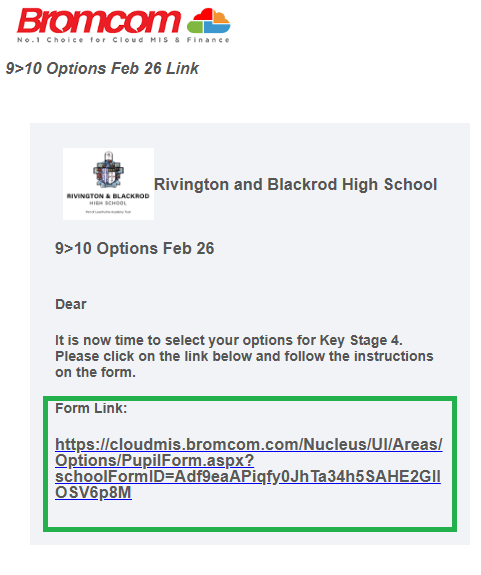
- All students will receive an email to their School Email address that contains a link to allow them to select their option choices.
- To access the School Email system - simply click here or visit: http://outlook.office365.com/
- Students should use their standard RBHS email address to log into their email account. The password for their account is the same password that they use to log into the computers at school. They must enter their email address ending in @rbhs.co.uk
- The email has the subject "9>10 Options Feb 26 Link" and has been sent from "services@bromcom.com "
Stage Two - Selecting your options
- Click on the link in the email (as per the green highlighted section below
- This will automatically open the a unique options selection form.
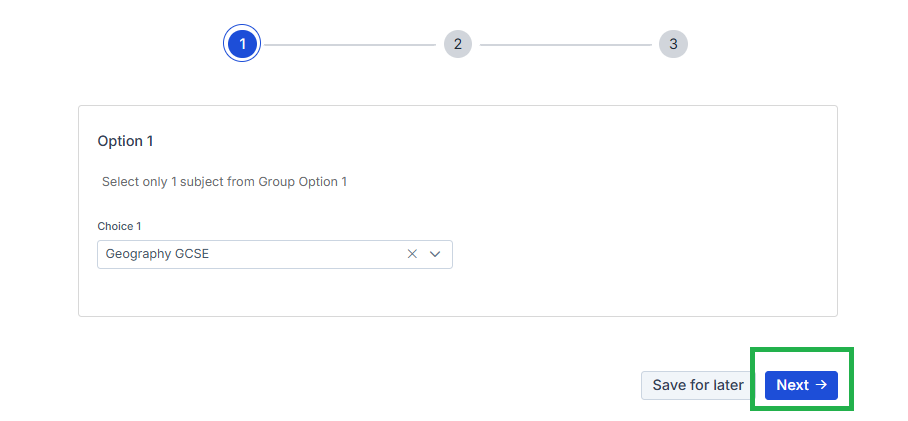
- On the first page you need to select Option 1
- For Option 1 you must select either: Computer Science, Geography, History or Spanish
- Once you have selected your choice for Option 1, click next:
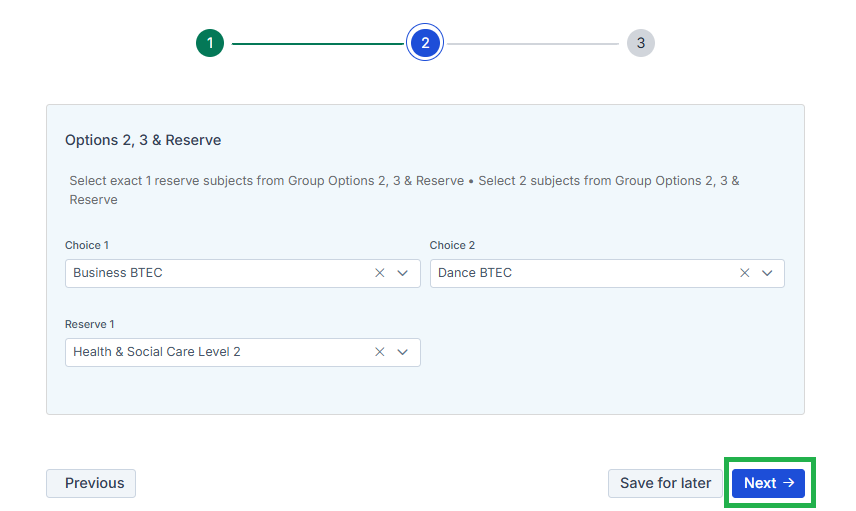
- You now need to select Option 2, 3 and your reserve option.
- Choice 1 is your Option 2
- Choice 2 is your Option 3
- Reserve 1 is your Reserve Option
- All three options must be for different subjects and cannot continue the subject you chose for Option 1.
- Once you have selected all three options, click next.
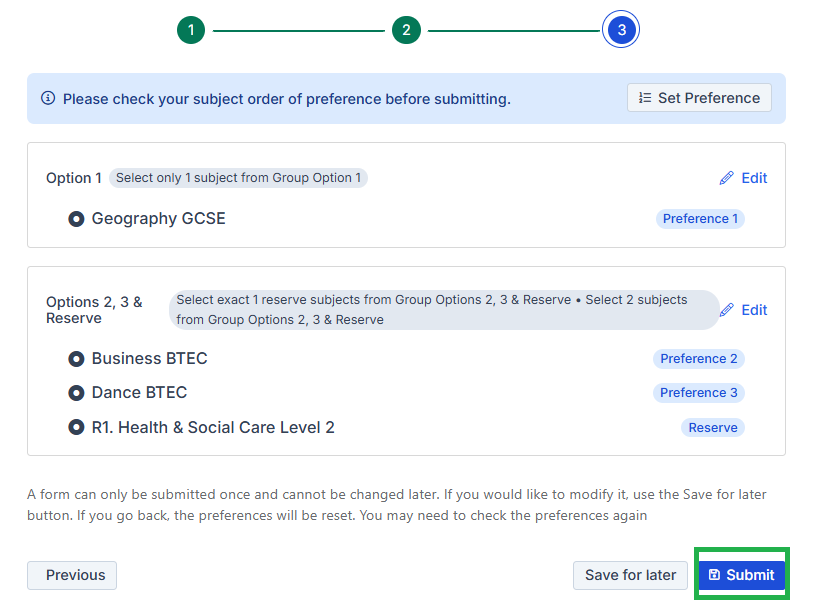
- You now have the opportunity to review your option choices. Once you are happy with your option choices, please select submit.
Please note:
A form can only be submitted once and cannot be changed later. If you would like to modify it, use the Save for later button. If you go back, the preferences will be reset. You may need to check the preferences again